
Key takeaways
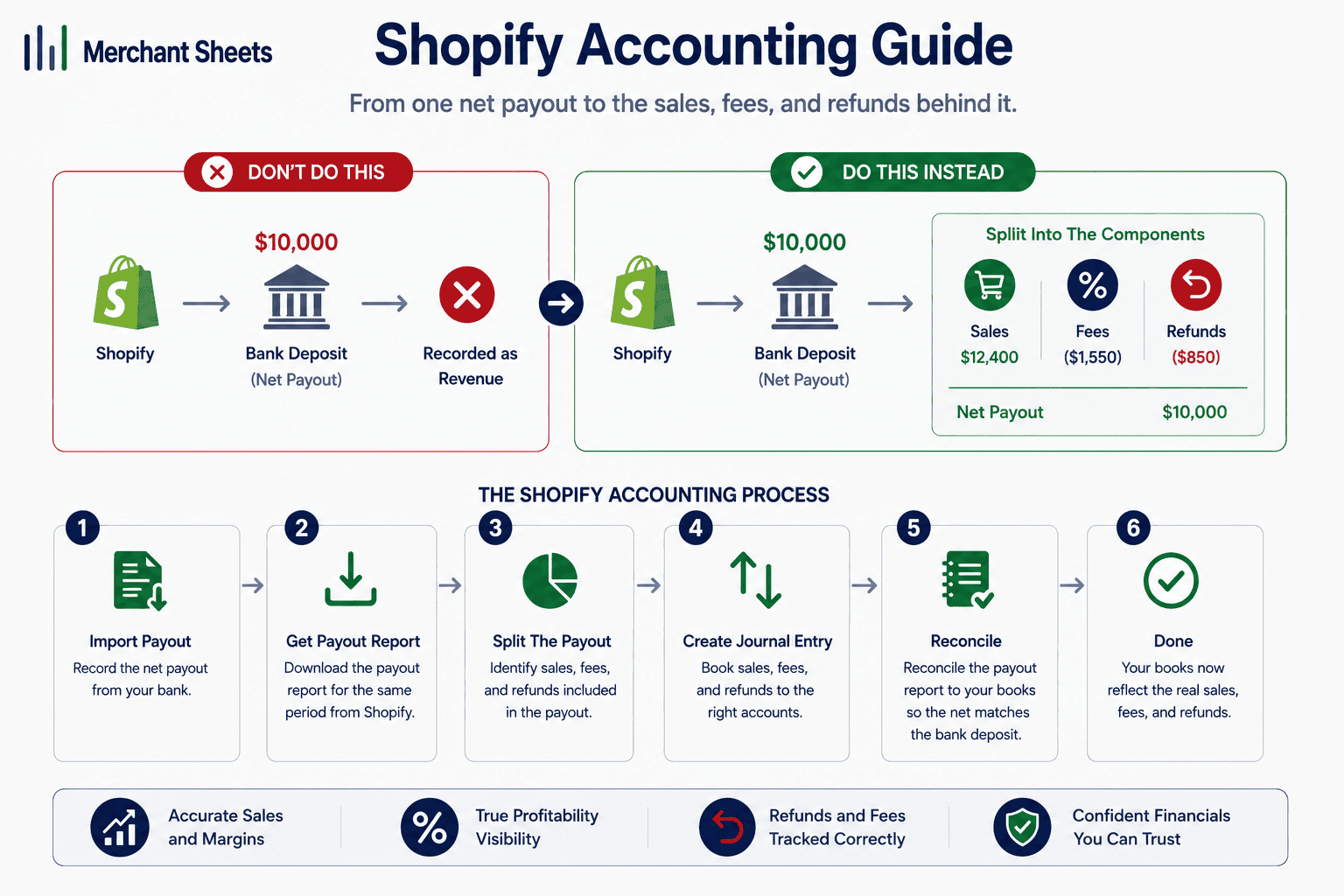
- Shopify accounting means keeping books that split each payout into gross sales, fees, and refunds, so revenue and margin read correctly.
Shopify Payments deposits your sales net of processing fees, refunds, and chargebacks, so the figure in your bank isn’t your revenue. - Processing runs roughly 2.5% to 2.9% plus 30 cents per online transaction depending on your plan as of 2026, and an outside gateway adds a Shopify fee on top.
- Brands that hold inventory should keep the books on accrual, so revenue and the cost of goods sold land in the same month.
- A settlement connector like A2X posts each payout into QuickBooks or Xero split by sales, fees, and refunds, which is what makes the books tie.
- Set up the chart of accounts, connect the software, handle sales tax, and reconcile every payout, and the monthly close becomes routine.
Shopify drops one number into your bank every few days, already net of fees and refunds. Book that number as revenue and your sales and your margin are both wrong from day one.
Shopify accounting is about splitting each payout back into the sales, fees, and refunds behind it.
Here’s how it works and how to set it up right.
What is Shopify accounting?
Shopify accounting is the practice of recording your Shopify sales, fees, refunds, inventory, and tax so your financial statements are accurate. It goes past a simple bank feed because Shopify deposits your sales net of fees, so the books have to split each payout back into gross sales, the processing fees, and any refunds before the numbers mean anything.
Shopify runs the storefront and the checkout, and it gives you order and payout reports, but it isn’t your accounting system. Those reports tell you what sold and what Shopify paid out; they don’t produce a balance sheet, carry inventory as an asset, or book the cost of goods sold.
That work happens in QuickBooks or Xero, and the numbers have to flow in in a shape your P&L (profit and loss statement) and your accountant can use.
A payout is the batched deposit Shopify sends to your bank every few days, and the whole setup comes down to three things: a chart of accounts, a clean connection to your software, and a way to handle those payouts.
It all sits inside the wider job of ecommerce bookkeeping, covered end to end in the complete ecommerce bookkeeping guide.
Why your Shopify payout isn’t your revenue
Shopify Payments groups a batch of orders into a payout, subtracts its processing fees, any refunds, and any chargebacks, then deposits the net into your bank. The bank feed shows one clean number that’s smaller than what your customers paid. Say a payout covers $10,000 in gross sales.
Take out about $300 in processing fees and $200 in refunds, and roughly $9,500 lands in your account. Book that $9,500 as revenue and you’ve lost $500 of sales and buried $300 of fees in a single entry.
That gap is why Shopify books drift. Revenue reads low, the fees never show up as an expense, and gross margin looks healthier than it is, so every downstream decision on pricing and ad spend runs on soft numbers.
The fix is to record the gross sales as income, the fees as an expense, and the refunds as a reduction of sales, so each payout ties back to what happened order by order.
Timing matters too: a payout can straddle a month end, so at close you match it by the payout’s own period rather than the deposit date, which keeps a strong sales month from leaking into the next one on the books.
| Your bank shows one net Shopify deposit. Your books need the gross sales, the fees, and the refunds split out, or revenue reads low and margin reads high. |
The processing fee itself depends on your plan. As of 2026, Shopify Payments runs roughly 2.5% to 2.9% plus 30 cents per online transaction, with the rate easing as you move to higher-tier plans, and routing checkout through an outside payment gateway adds a Shopify transaction fee on top. Rates move, so confirm yours before you model them.
Table 1. What a Shopify payout contains, and where each piece goes in the books.
| Shopify payout line | What it is | Where it goes in the books |
| Gross sales | The full order value the customer paid | Revenue (income) |
| Processing fees | Shopify Payments’ cut, deducted before deposit | An expense (merchant fees) |
| Refunds | Money returned to customers in the period | A reduction of sales (contra-revenue) |
| Chargebacks | Disputed payments clawed back | An expense or a reduction of sales |
| Net deposit | What actually lands in your bank | The bank transaction you reconcile to |
Cash or accrual: which should you use?
Most Shopify brands that hold inventory should keep the books on accrual. Accrual accounting records revenue when the sale happens and the cost of goods sold in the same period, so each month’s profit reflects the sales and the stock that moved.
Cash accounting, which records money only when it enters or leaves your bank, is simpler and fine for a very small, inventory-light business, though it distorts margin the moment you buy stock in one month and sell it across the next few.
The method sets how the rest of the books behave, so make the call early: if you carry inventory, choose accrual. A quick example shows why. Buy $6,000 of stock in January and sell it for $10,000 across February and March.
On a cash basis, January shows a $6,000 loss and the next two months look unusually profitable; on accrual, the cost follows the sales, so each month’s margin reflects what really happened.
Set up your Shopify chart of accounts
Your chart of accounts (COA) is the list of buckets every transaction lands in, and a Shopify business needs a handful of specific ones beyond the software defaults. Alongside a gross sales account and the usual operating expenses, you want a clearing account for Shopify Payments, a merchant-fees expense, a refunds account, cost of goods sold, inventory, and sales tax payable.
If you expect to add Amazon or wholesale later, tag or class your Shopify sales from the start, so the same chart of accounts can report profit by channel without a rebuild.
The clearing account is the piece that makes payouts reconcile, so it’s worth setting up on purpose. When an order is placed, the sale posts to the clearing account; when Shopify pays out, the deposit clears that account down against your bank, with the fees and refunds coming out along the way.
Get that one account right and every payout has a clean home instead of a mystery deposit to force-match. The fuller build, with account numbers and channel tags, is in the ecommerce chart of accounts.
A starter set looks like this.
Table 2. A starter Shopify chart of accounts.
| Account | Type | What it captures |
| Sales – Shopify | Income | Gross sales through the Shopify business |
| Shopify Payments clearing | Current asset | Holds sales between the order and the payout deposit |
| Merchant processing fees | Expense | Shopify Payments and gateway fees |
| Refunds and returns | Contra-income | Money returned to customers |
| Cost of goods sold | Expense | The landed cost of the units sold |
| Inventory | Current asset | Unsold stock on hand |
| Sales tax payable | Current liability | Tax collected and owed to the states |
How to connect Shopify to your accounting software
Shopify isn’t the accounting system, so your sales need to flow into QuickBooks or Xero. Either one handles a Shopify business well, and the choice usually comes down to what you or your bookkeeper already know; the deeper comparison is in QuickBooks vs Xero.
The bigger decision is how the data gets there. A native or direct app sync is quick to set up, and many of them post only the net deposit, which hides the fees and breaks the payout split you built the accounts for.
A settlement connector posts each payout already broken into sales, fees, and refunds, which is what keeps the books tied to the bank without hand-keyed journal entries.
If you take payment through more than one gateway, say Shopify Payments alongside PayPal, each one pays out on its own schedule and needs its own clearing treatment, which is another reason a connector that understands payouts saves time.
An automated connector like A2X is the common choice for brands that want their books to reconcile cleanly, walked through step by step in connecting Shopify to QuickBooks with A2X. The three routes compare like this.
Table 3. Three ways to get Shopify data into your books.
| Method | Best for | The trade-off |
| Manual entry or spreadsheet | Very low volume on one channel | Cheapest, but slow and error-prone as orders grow |
| Native or direct app sync | Simple businesses wanting quick automation | Fast to set up, though it often books the net deposit and hides fees |
| Settlement connector (A2X) | Brands that want books that tie | Posts each payout split into sales, fees, and refunds for a small monthly fee |
Record sales, fees, and COGS the right way
With the accounts and the connection in place, a month books cleanly. Gross sales post to income, processing fees post to the merchant-fees expense, and refunds reduce sales.
The net payout clears the Shopify Payments clearing account against the bank, so the deposit you see matches the sales you recorded.
Then there’s the cost side. Cost of goods sold (COGS), the direct cost of the units you sold, posts against inventory as those units ship, ideally on a landed-cost basis so freight and duty are folded into the cost of the goods rather than expensed on their own.
Two details trip people up here. COGS should land in the same month as the sale it belongs to, so if your software books cost only when you buy stock, your margin will swing month to month for no real reason.
And Shopify Payments fees belong in their own expense line rather than netted against sales, so you can watch the true cost of processing as volume grows. Booked this way, your P&L shows revenue at the real gross number and a gross margin that reflects true product cost.
The costing method itself is covered in landed-cost COGS, and the same approach carries over when you add a marketplace, which is where Amazon seller bookkeeping picks up.
How does sales tax work on Shopify?
Shopify can calculate and collect sales tax at checkout, though collecting it isn’t the same as being done with it. Unlike selling on Amazon, Shopify isn’t a marketplace facilitator for your own business, so the job of registering, collecting, and remitting is yours, not the platform’s.
The tax you collect is money you owe the states, so it posts to a sales tax payable liability rather than to income, and it sits there until you file and remit. Treat it as pass-through cash and your revenue stays clean.
You owe tax only where you have nexus, an obligation to collect once you cross a state’s sales or transaction threshold, and each state you register in adds a filing to keep up with.
The thresholds and how to track them are in sales tax nexus. Rules vary by state, so treat this as general information rather than tax advice.
How do you close your Shopify books each month?
Once the setup is right, the monthly close is a short, repeatable routine that ties every payout to the bank and produces a profit and loss statement you can trust. If you also sell on Amazon or elsewhere, the same rhythm extends to reconciling every channel. Work through these five steps each month:
- Reconcile each Shopify payout to its matching deposit in the bank.
- Confirm gross sales, fees, and refunds are split out, not netted into one figure.
- Book COGS for the units sold and update your inventory balance.
- Reconcile the sales tax you collected against what you owe.
- Review your profit by channel and close the month.
Frequently asked questions
Does Shopify have built-in accounting?
Shopify doesn’t have full built-in accounting; it records orders, payouts, and fees and gives basic finance reports, but you connect it to QuickBooks or Xero for a real chart of accounts, COGS, and financial statements.
How do I record Shopify sales in QuickBooks?
Record Shopify sales in QuickBooks by posting gross sales to income, processing fees to an expense, and refunds as a reduction of sales, then clearing the net payout against the bank, which a settlement connector like A2X can automate.
Why doesn't my Shopify payout match my sales?
Your payout doesn’t match your sales because Shopify deposits the net after processing fees, refunds, and chargebacks, so a $10,000 sales run can land as roughly $9,500 in the bank once fees and refunds come out.
What accounting software is best for Shopify?
QuickBooks Online and Xero are both strong choices for Shopify, and the bigger decision is pairing either one with a settlement connector like A2X so each payout posts split into sales, fees, and refunds.
Should Shopify bookkeeping be cash or accrual?
Shopify bookkeeping should be on accrual for any brand that holds inventory, so revenue and the cost of goods sold land in the same period; cash accounting is simpler but distorts margin once you carry stock.
Do I need A2X for Shopify accounting?
You don’t strictly need A2X, but a settlement connector saves hours and keeps the books tied by posting each payout split into sales, fees, and refunds; the alternative is careful manual journal entries every payout.
How much does Shopify charge in transaction fees?
Shopify Payments charges roughly 2.5% to 2.9% plus 30 cents per online transaction depending on your plan as of 2026, and routing checkout through an outside payment gateway adds a Shopify transaction fee on top.
